GoGuardian
GoGuardian allows you to view the screens of your students when they are logged into their CVSD Google account and using the Chrome browser. You can close tabs, open tabs, and limit websites students are on.
To log in to GoGuardian
- Navigate to Clever.
- Select the GoGuardian icon.
How to launch a session:
- Once you have logged into Clever, if this is the first time in, you will need to accept the permissions.
- Under the Classrooms tab, select "pending."
- Click "accept" for any class you would like to use GoGuardian.
- Under Classrooms, click on the active tab.
- Click on your class.
- Select the number of minutes for your session. Your session is the time that you'd like to see your students' screen.
Need some more support?
My Students' Screens are not Showing Up in GoGuardian- Tips to Try
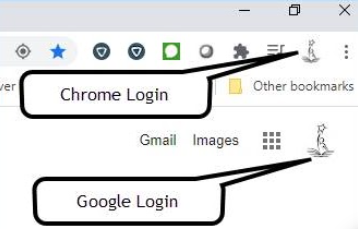
The first tip is to make sure that the student is logged not Chrome and not just logged into Google with their CVSD356 account.
There could be a few reasons why your students won't show up in GoGuardian:
- Student's Screen Says "Student Offline"
- Student's Screen Says "No Active Tab"
- Student's Screen Says "Student Not Found"
- Students Missing from Classroom Session